Learn How to Build Trust and
Grow Your Office!
Missed Call Text Back: How to Stay Connected With Patients Even When Your Clinic Can't Answer
Missed Call Text Back: How to Stay Connected With Patients Even When Your Clinic Can't Answer
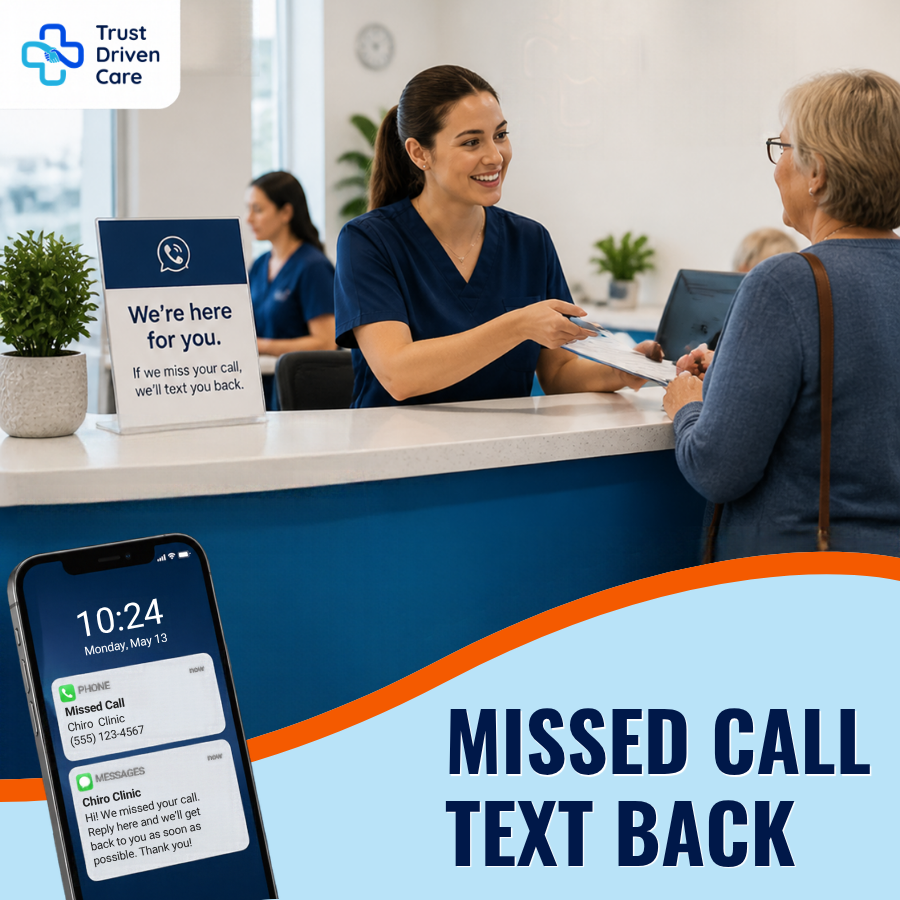
Missed Call Text Back gives busy healthcare clinics a simple way to respond when the phone goes unanswered. With TrustDrivenCare, an automatic text message is sent to callers, letting them know your team is available to help. Patients can reply by text, and your staff can follow up when they're available.
How TrustDrivenCare Helps Your Clinic Stay Connected
Running a clinic means constantly balancing patient care with everything happening behind the scenes. Your front desk might be checking in patients, answering questions, processing payments, or helping someone schedule their next visit.
The phone doesn't always ring at a convenient time.
That's where TrustDrivenCare's Missed Call Text Back feature comes in. When an incoming call goes unanswered, the system automatically sends a text message to the caller.
Your team doesn't have to stop what they're doing to send a manual response. Patients receive an acknowledgment and another way to communicate with your clinic.
It's a simple way to make sure an unanswered call doesn't have to become a missed conversation.
Why Missed Calls Matter in a Busy Clinic
Think about the last time your front desk was handling several things at once.
A patient is checking out. Another is waiting to be seen. Someone needs help with their appointment, and the phone starts ringing.
Your team can't always answer everything immediately. That's understandable.
But consider who's calling.
A new patient interested in scheduling their first visit.
An existing patient who needs to reschedule.
Someone with a question about their treatment plan.
A patient following up after a recent visit.
In a busy healthcare practice, communication doesn't stop when a patient leaves the clinic. Patients may need help scheduling their next visit, confirming appointment details, rescheduling, or asking a question before their next appointment.
When those calls go unanswered, patients may put off reaching out or look elsewhere for help. Giving them another way to connect, even when your team is busy, helps keep the conversation going and makes follow-up easier for everyone.
How Does Missed Call Text Back Work?
The concept is straightforward. When someone calls your clinic and the call goes unanswered, TrustDrivenCare automatically sends a customized text message to the caller.
For example:
"Hi! We missed your call, but we're here to help. Please reply to this message with your question, and someone from our team will get back to you shortly!"
Instead of leaving the caller wondering whether anyone received their call, they have an immediate way to respond. Your team can then manage the conversation through TrustDrivenCare.
How to Set Up Missed Call Text Back in TrustDrivenCare
You don't need a complicated process to get started. Follow these four steps:
Step 1: Enable Missed Call Text Back
Go to Settings > Phone System > Voice > Voicemail & Missed Call Text Back in your TrustDrivenCare account.
Toggle the switch to enable the feature.
Use the text box below to create your automated message.
Save your customized message.
Keep your message short, friendly, and easy to understand.
Think about how your front desk would normally respond to a patient. Your automated message should sound just as natural.
Pro Tip: You can use ChatGPT to create a few message variations that match your clinic's tone. Just make sure the final message sounds like something your team would actually say.
Step 2: Test the Feature
Before relying on the feature, make sure everything works as expected.
Here's a simple way to test it:
Use another phone to call your clinic's number.
Let the phone ring without answering.
Check whether you receive the automated text message.
Reply to the message to confirm that you can continue the conversation.
This gives you an opportunity to check the message and make adjustments before patients start receiving it.
Step 3: Monitor Patient Replies in Conversations
Once Missed Call Text Back is enabled, incoming SMS replies will appear in the Conversations tab.
Go to Conversations from the left-hand menu.
From here, your team can:
View incoming patient messages.
Respond directly through SMS.
Keep track of ongoing conversations.
Assign conversations to team members for follow-up.
This is where your team can take over after the automated message has been sent.
Remember, automation handles the initial response, but your team still needs to answer questions and help patients with their next steps.
Step 4: Review and Update Your Message
Your clinic's communication needs can change.
You might adjust your business hours, update your scheduling process, or change how your front desk handles incoming calls.
Review your automated message periodically to make sure it still reflects how your clinic operates.
For example, if your clinic has changed its hours, update the message so patients know when they can expect someone to follow up.
BOOK A DEMO
Make It Easier for Patients to Reach Your Clinic
You can't always be available to answer every call, and your front desk shouldn't have to stop everything they're doing just to acknowledge every incoming call.
What matters is having a process in place for when those calls go unanswered.
With TrustDrivenCare's Missed Call Text Back feature, patients receive an automatic response and have another opportunity to connect with your clinic. Your team can then manage incoming replies through Conversations and follow up when they're available.
It's one less communication gap to worry about and one more way to keep your clinic running smoothly.
Don't Let an Unanswered Call Be the End of the Conversation
Every call is an opportunity to help someone who needs your services. Give those callers another way to reach your clinic, even when your team is busy.
Make sure your clinic has a plan for every missed call.
Learn how Missed Call Text Back helps your clinic respond to unanswered calls and keep patient conversations going.
BOOK A DEMO
Watch the Video
In this video, the team explains how to use patient lists and automated sequences to stay connected while keeping the communication personal.
Start With the Person, Not the Automation
The best nurture messages start with a simple question:
“Who am I talking to, and what would actually help them right now?”
For example, you might have patients who have had chiropractic care but have never tried massage. Instead of sending the same message to everyone, you can create a group and send helpful information about how massage may support their care.
You can do the same with other services, new leads, inactive patients, or patients who have already booked.
A Real-Life Experience: From Lead to Patient
Dr. Amanda shared a real-life experience from her clinic that shows how consistent, helpful communication can turn an interested lead into a patient.
A potential patient filled out their online booking form but decided not to book right away. Instead of letting that lead disappear, the clinic continued sending helpful emails about what made their practice different and how they could help.
About a month later, the person was ready and booked an appointment through Jane™.
But the nurture did not stop there.
Once the appointment was booked, the communication changed. The patient received information about what to expect, how to find the clinic, and what their first few weeks of care might look like. The patient later told the clinic that she loved the process because she felt informed and knew what to expect.
That is the real value of nurture sequences.
You are not trying to convince someone to book before they are ready. You are staying helpful until they are ready, then changing the conversation as they move through their care.
Let TDC Handle the Repeatable Work
A patient may move through several stages:
Lead → New Patient → Ongoing Care → Follow-Up
Each stage can have different communication.
TDC can use information from Jane™ to help trigger the right sequence at the right time, so your team does not have to remember every step or manually update every patient. The technology handles the repeatable work. Your team keeps the human connection.
Make Automation Feel Human
Automation does not mean every message needs to sound automated. Keep the message relevant to the person, use their name when appropriate, and give them information that actually helps them move forward.
The goal is not to send more messages. The goal is to send the right message at the right time.
BOOK A DEMO
Try This Today
You do not need to change everything at once.
1. Clean up one TDC view.
Remove the information your team rarely uses and keep the fields they need every day.
2. Pick one patient group.
Find a group that could benefit from helpful follow-up or education.
3. Ask one question.
What is something my team keeps doing manually that TDC could make easier?
Start there.
When you remove small pieces of work from your team's day, those minutes add up. Your team gets more time to focus on patients instead of searching, copying, remembering, and following up manually.
Keep Learning
If you are already using TDC, continue your training through TDC University and the Marketing Essentials classes. You can also follow us on Facebook and Instagram for helpful tips, new lessons, and updates on upcoming webinars.
If you are not using TDC yet and want to see how it could fit into your clinic, book a free demo with the TDC team. You can see the platform in action, talk through your clinic's needs, and learn which tools may be useful for your team.
You do not need to change everything at once.
Find one problem. Make it easier. Then build from there.
Want to See How TDC Could Fit Your Clinic?
BOOK A DEMO